
java fun and games(java娱乐和游戏)提供了通过java的robot类捕获主屏幕设备的功能,并且可以将整个屏幕或者选定的一部分保存为jpeg文件。这篇文章以swing应用的形式实现了屏幕捕获工具。
java fun and games(java娱乐和游戏)提供了通过java的robot类捕获主屏幕设备的功能,并且可以将整个屏幕或者选定的一部分保存为jpeg文件。
注意:现在你可以使用在线开发工具devsquare编译和运行java fun and games中提供的applet。devsquare入门请阅读资源中提供的用户向导。
java.awt.robot类为娱乐功能提供了一些有用的方法。其中一个包括了建立屏幕捕获工具的功能。java fun and games给出了一个使用robot捕获主屏幕设备内容的工具。
这一部分从我以前的几部分中分离出来了,因为它并不是集中在applet实现上。这篇文章以swing应用的形式实现了屏幕捕获工具。从gui观点介绍完这个应用之后,我将解释实现的关键部分。
版权声明:任何获得matrix授权的网站,转载时请务必保留以下作者信息和链接
作者:jeff friesen;mydeman
原文:http://www.javaworld.com/javaworld/jw-04-2006/jw-0424-funandgames.html
matrix:http://www.matrix.org.cn/resource/article/2006-09-15/java+robot_f9598e5e-445b-11db-af0b-0f766c077b58.html
关键字:java robot;捕获屏幕
应用程序gui
我的capture程序提供了一个图形用户界面(gui,graphic user interface),通过它你可以选择捕获图像的一部分,修剪图像到选择内容,以及将结果图像保存为jpeg文件。图1显示了包含一个捕获示例的capture的gui。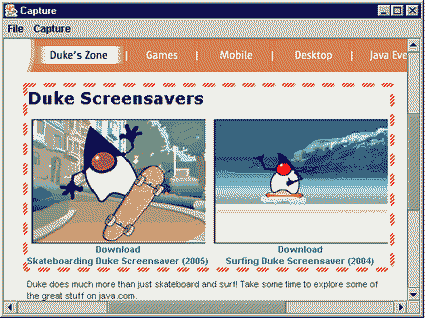
图 1. 红白相间的虚线所形成的矩形表示了当前选中的区域
capture的gui由菜单栏和显示捕获图像的可滚动窗口组成。如图1所示,选择矩形(通过拖拽鼠标)表示了捕获图形的一个矩形区域。
菜单栏提供了file和capture菜单:
---file提供save as…(另存为)和exit(退出)菜单项,可以通过文件选择器保存当前捕获为一个jpeg文件,和退出capture。尽管你可以直接选择这些菜单项,但是你会发现使用它们的快捷键alt-s和alt-x会更加方便。
---capture提供capture(捕获)和crop(修剪)菜单项,可以捕获当前主屏幕设备的内容和修剪一个图像为选择矩形的内容。和file菜单项一样,这些菜单项也有它们自己的方便的快捷键:capture(alt-c)和crop(alt-k)。
应用实现
有三个源文件来描述capture的gui:capture.java(启动应用程序和构造gui)、imagearea.java( 描述了一个用来显示捕获的内容的组件,你也可以在其中选择捕获的一部分或修剪捕获的内容)和imagefilefilter.java(限制文件选择器的选择是文件夹和jpeg文件)。在这一部分下面,我从这些源文件中摘录了一些代码片断来说明capture的工作过程。
机器人屏幕捕获
为了使用robot类捕获屏幕,capture必须先创建一个robot对象。capture类的public static void main(string [] args)方法尝试调用robot的public robot()构造函数来创建这个对象。如果创建成功,就会返回一个针对主屏幕设备坐标系的robot引用。如果平台不支持低级控制(在没有屏幕设备的环境这是成立的),将会抛出java.awt.awtexception。如果平台不允许创建robot对象就会抛出java.lang.securityexception。但愿你不会再遇到其他异常。
假设robot对象已被创建,main()调用capture类的构造函数创建一个gui。作为gui创建的一部分,capture通过调用dimscreensize = toolkit.getdefaulttoolkit().getscreensize();获得主屏幕设备的尺寸。因为用来显示屏幕捕获的内容的robot的public bufferedimage createscreencapture(rectangle screenrect)方法,需要一个java.awt.rectangle参数,所以构造函数通过rectscreensize = new rectangle(dimscreensize);将java.awt.dimension对象转换为一个rectangle对象。当capture菜单项的动作监听器被调用时,下面摘录的capture.java片断就会调用createscreencapture()。
// hide capture's main window so that it does not appear in
// the screen capture.

setvisible (false);

// perform the screen capture.

bufferedimage biscreen;
biscreen = robot.createscreencapture (rectscreensize);

// show capture's main window for continued user interaction.

setvisible (true);

// update imagearea component with the new image and adjust
// the scrollbars.

ia.setimage (biscreen);

jsp.gethorizontalscrollbar ().setvalue (0);
jsp.getverticalscrollbar ().setvalue (0);
你不希望capture的gui遮住你想要捕获的任何内容。这就是为什么代码中隐藏capture gui优先级高于完成捕获。在获取了包含屏幕像素copy的java.awt.image.bufferedimage后,代码片断显示出gui,并且通过图像区域组件显示出bufferedimage的内容。
子图像选择
当从一个捕获的图像中获取子图像时需要一个选择矩形。imagearea类提供代码来创建、操作和绘制选择矩形。如下面摘录的imagearea.java所示,这个类的构造函数以一个rectangle实例创建选择矩形,创建java.awt.basicstoke和java.awt.gradientpaint对象定义了矩形的轮廓外观(保持它与底层图像分离),注册鼠标和鼠标动作监听器让你能够操作选择矩形。
// create a selection rectangle. it's better to create one rectangle
// here than a rectangle each time paintcomponent() is called, to reduce
// unnecessary object creation.
rectselection = new rectangle ();
// define the stroke for drawing selection rectangle outline.
bs = new basicstroke (5, basicstroke.cap_round, basicstroke.join_round,
0, new float [] { 12, 12 }, 0);
// define the gradient paint for coloring selection rectangle outline.
gp = new gradientpaint (0.0f, 0.0f, color.red, 1.0f, 1.0f, color.white,
true);
// install a mouse listener that sets things up for a selection drag.
mouselistener ml;
ml = new mouseadapter ()
{
public void mousepressed (mouseevent e)
{
// when you start capture, there is no captured image.
// therefore, it makes no sense to try and select a sub-image.
// this is the reason for the if (image == null) test.
if (image == null)
return;
destx = srcx = e.getx ();
desty = srcy = e.gety ();
repaint ();
}
};
addmouselistener (ml);
// install a mouse motion listener to update the selection rectangle
// during drag operations.
mousemotionlistener mml;
mml = new mousemotionadapter ()
{
public void mousedragged (mouseevent e)
{
// when you start capture, there is no captured image.
// therefore, it makes no sense to try and select a
// sub-image. this is the reason for the if (image == null)
// test.
if (image == null)
return;
destx = e.getx ();
desty = e.gety ();
repaint ();
}
};
addmousemotionlistener (mml);
当按下鼠标时,鼠标事件处理器对相同的横向鼠标坐标设置destx和srcx,对于纵向鼠标坐标亦是如此。源变量和目标变量同样表示哪些显示的选择矩形应该被移除了。它通过调用repaint(),导致public void paintcomponent(graphics g)被调用。这个方法将srcx和srcy分别与destx和desty相比较,如果他们不同,就绘制一个选择矩形:
// draw the selection rectangle if present.

if (srcx != destx || srcy != desty)
{
    // compute upper-left and lower-right coordinates for selection
    // rectangle corners.

    int x1 = (srcx < destx) ? srcx : destx;
    int y1 = (srcy < desty) ? srcy : desty;

    int x2 = (srcx > destx) ? srcx : destx;
    int y2 = (srcy > desty) ? srcy : desty;

    // establish selection rectangle origin.

    rectselection.x = x1;
    rectselection.y = y1;

    // establish selection rectangle extents.

    rectselection.width = (x2-x1)+1;
    rectselection.height = (y2-y1)+1;

    // draw selection rectangle.

    graphics2d g2d = (graphics2d) g;
    g2d.setstroke (bs);
    g2d.setpaint (gp);
    g2d.draw (rectselection);
}
在选择矩形绘制以前,它的左上和右下角必须对标示出来,用来确定矩形的原点和范围。以至于你可以在不同的方向拖拽出选择矩形(例如右下或者左上方向),srcx/destx和srcy/desty的最小值表示左上角,相似地,它们的最大值表示右下角。
图像修剪
在选择子图像后,你想要修剪捕获的图像得到子图像。图像修剪启动crop中的菜单项的动作监听器,它请求imagearea将捕获的图像修剪为选择的子图像。若操作成果,监听器则重置imagearea的滚动条。反之,监听器通过对话框给出一个“out of bounds”错误信息。
// crop imagearea component and adjust the scrollbars if
// cropping succeeds.

if (ia.crop ())
{
    jsp.gethorizontalscrollbar ().setvalue (0);
    jsp.getverticalscrollbar ().setvalue (0);
}
else
    showerror ("out of bounds.");
因为修剪操作不重置capture gui的大小,所以可以同时看到主窗口的背景和结果图像(初始修剪后的)。图2显示了选择图像的一部分时还可能选中背景的一部分。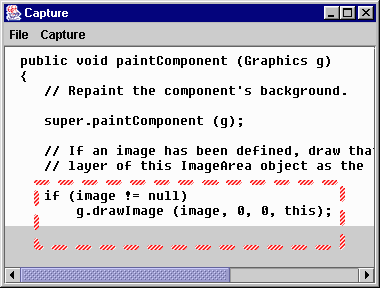
图 2. 尝试选择多于这个图像
主窗口的背景像素不是捕获的图像的一部分;就不可能把它们包含在修剪的图片内。因此,无论何时把背景像素包含在修剪区域内,操作都会失败,并且会给出一个“out of bounds”错误信息。
修剪操作由imagearea的public boolean crop()方法处理。如果完成了修剪或者没有选择子图像(当没有选中内容时调用这个方法是非常方便的)该方法(如下所示)返回true。如果在选择区域中包含了背景像素则返回false。
public boolean crop ()
{
// there is nothing to crop if the selection rectangle is only a single
// point.
if (srcx == destx && srcy == desty)
return true;
// assume success.
boolean succeeded = true;
// compute upper-left and lower-right coordinates for selection rectangle
// corners.
int x1 = (srcx < destx) ? srcx : destx;
int y1 = (srcy < desty) ? srcy : desty;
int x2 = (srcx > destx) ? srcx : destx;
int y2 = (srcy > desty) ? srcy : desty;
// compute width and height of selection rectangle.
int width = (x2-x1)+1;
int height = (y2-y1)+1;
// create a buffer to hold cropped image.
bufferedimage bicrop = new bufferedimage (width, height,
bufferedimage.type_int_rgb);
graphics2d g2d = bicrop.creategraphics ();
// perform the crop operation.
try
{
bufferedimage bi = (bufferedimage) image;
bufferedimage bi2 = bi.getsubimage (x1, y1, width, height);
g2d.drawimage (bi2, null, 0, 0);
}
catch (rasterformatexception e)
{
succeeded = false;
}
g2d.dispose ();
if (succeeded)
setimage (bicrop); // implicitly remove selection rectangle.
else
{
// prepare to remove selection rectangle.
srcx = destx;
srcy = desty;
// explicitly remove selection rectangle.
repaint ();
}
return succeeded;
}
crop()方法调用bufferedimage的public bufferedimage getsubimage(int x, int y, int w, int h)方法摘取选择区域内的子图像。如果该方法的参数没有指定bufferedimage内的图像,它就会抛出一个java.awt.image.rasterformatexception,因此就会返回false。
图像保存
capture允许你把捕获的图像保存为一个jpeg文件。你通过一个保存文件选择器指定文件名,选择器由capture类的构造函数创建:
// construct a save file-chooser. initialize the starting directory to
// the current directory, do not allow the user to select the "all files"
// filter, and restrict the files that can be selected to those ending
// with .jpg or .jpeg extensions.

final jfilechooser fcsave = new jfilechooser ();
fcsave.setcurrentdirectory (new file (system.getproperty ("user.dir")));
fcsave.setacceptallfilefilterused (false);
fcsave.setfilefilter (new imagefilefilter ());
为了限制文件选择器的选择是文件夹或者是以.jpg或.jpeg为后缀的文件,就使用了imagefilefilter类的一个实例作为保存时文件选择器的文件过滤器。该方法对于任何非文件夹和后缀名非.jpg/.jpeg的文件都返回false:
public boolean accept (file f)
{
   // allow the user to select directories so that the user can navigate the
   // file system.

   if (f.isdirectory ())
       return true;

   // allow the user to select files ending with a .jpg or a .jpeg
   // extension.

   string s = f.getname ();
   int i = s.lastindexof ('.');

   if (i > 0 && i < s.length ()-1)
   {
       string ext = s.substring (i+1).tolowercase ();

       if (ext.equals ("jpg") || ext.equals ("jpeg"))
           return true;
   }

   // nothing else can be selected.

   return false;
}
当你选择了save as…菜单项时,它的监听器就会显示一个保存文件选择器。假定你没有退出选择器,监听器就会确保你选择的文件名是以.jpg或.jpeg为后缀名。继续,监听器会确定文件是否存在,这样你就不会无意中覆盖一个存在的文件。
// present the "save" file-chooser without any file selected.
// if the user cancels this file-chooser, exit this method.

fcsave.setselectedfile (null);
if (fcsave.showsavedialog (capture.this) !=
    jfilechooser.approve_option)
    return;

// obtain the selected file. validate its extension, which
// must be .jpg or .jpeg. if extension not present, append
// .jpg extension.

file file = fcsave.getselectedfile ();
string path = file.getabsolutepath ().tolowercase ();
if (!path.endswith (".jpg") && !path.endswith (".jpeg"))
    file = new file (path += ".jpg");

// if the file exists, inform the user, who might not want
// to accidentally overwrite an existing file. exit method
// if the user specifies that it is not okay to overwrite
// the file.

if (file.exists ())
{
    int choice =  joptionpane.
                  showconfirmdialog (null,
                                     "overwrite file?",
                                     "capture",
                                     joptionpane.
                                     yes_no_option);
    if (choice == joptionpane.no_option)
        return;
}
如果文件不存在或者你允许覆盖已经存在的文件,监听器就会将捕获的内容保存为一个选择的文件。为了完成这个任务,监听器使用java的imageio框架选择一个jpeg writer,指定文件作为writer的目标,设置writer的压缩品质为95%,然后把图像写入到文件中。
imagewriter writer = null;
imageoutputstream ios = null;
try
{
// obtain a writer based on the jpeg format.
iterator iter;
iter = imageio.getimagewritersbyformatname ("jpeg");
// validate existence of writer.
if (!iter.hasnext ())
{
showerror ("unable to save image to jpeg file type.");
return;
}
// extract writer.
writer = (imagewriter) iter.next();
// configure writer output destination.
ios = imageio.createimageoutputstream (file);
writer.setoutput (ios);
// set jpeg compression quality to 95%.
imagewriteparam iwp = writer.getdefaultwriteparam ();
iwp.setcompressionmode (imagewriteparam.mode_explicit);
iwp.setcompressionquality (0.95f);
// write the image.
writer.write (null,
new iioimage ((bufferedimage)
ia.getimage (), null, null),
iwp);
}
catch (ioexception e2)
{
showerror (e2.getmessage ());
}
finally
{
try
{
// cleanup.
if (ios != null)
{
ios.flush ();
ios.close ();
}
if (writer != null)
writer.dispose ();
}
catch (ioexception e2)
{
}
}
让代码自己清理一直是一个不错的主意。我把imageio的清理代码放在了finally子句中,以至于无论是正常结束还是抛出异常,它都可以执行。
总结
capture限制了捕获的内容只能在主屏幕设备内。你可能想增强capture来捕获所有附加屏幕设备(或许是一个巨大的虚拟屏幕)的内容。增强之一,你需要包含下面的代码,它捕获所有屏幕的内容,将它和capture.java已经存在的代码集成。
graphicsenvironment graphenv = graphicsenvironment.getlocalgraphicsenvironment ();
graphicsdevice [] screens = graphenv.getscreendevices ();
bufferedimage [] captures = new bufferedimage [screens.length];

for (int i = 0; i < screens.length; i++)
{
    displaymode mode = screens [i].getdisplaymode ();
    rectangle bounds = new rectangle (0, 0, mode.getwidth (), mode.getheight ());
    captures [i] = new robot (screens [i]).createscreencapture (bounds);
}
把以上代码放到capture菜单项的动作监听器内。然后先引入代码创建一个bigscreen要引用的足够大的bufferedimage,它可以保存被captures数组引用的所有bufferedimage内容;接着引入代码把它们的绘制到bigscreen中。capture现在成为了多屏幕捕获器就好像是一个单屏幕捕获器。
关于作者
jeff friesen是一个自由软件开发者和教育家,特别是在c、c++和java技术领域。

 闽公网安备 35060202000074号